
Coaches – the following is a step by step instruction guide to log in in to your team account for roster information. Once there, you will be able to see your team roster and each player’s contact info so you can contact their parents and introduce yourself and set up practice times, get jersey sizes (if U10 or above), etc, communicate practice location, etc . . .
You can even send e-mails to communicate with the players/coaches/managers on the team roster – although once you get started, we suggest group text apps or GroupMe.
See below instructions of laptop/desktop and/or phone/app.
STEP #1 – Click https://gb.playmetrics.com/member/membership to log in or download the app on your phone.
Your initial screen should appear something like this –
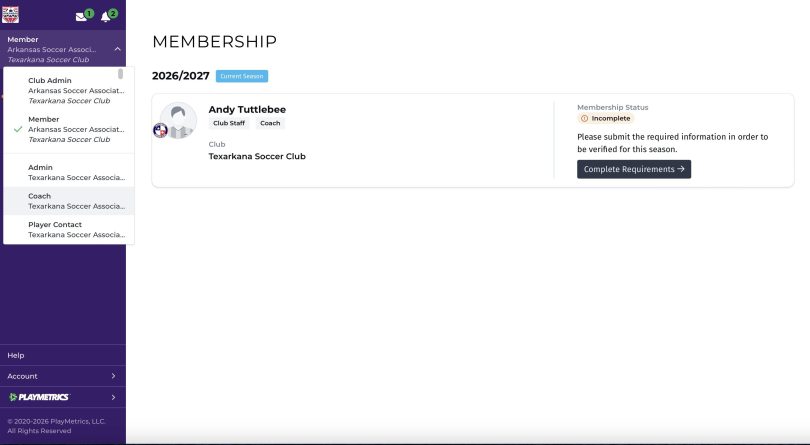
Click on Coach (Texarkana Soccer Association) on the left side toolbar. And you should arrive here. On the left side toolbar should be the name of your team or a temporary name in ALL CAPS (in this case, the PIRATES). Click on your team name.
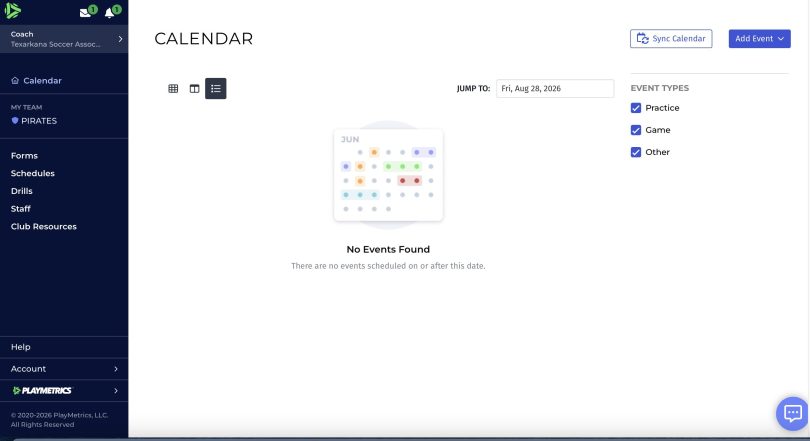
Clicking on your team name will take you here. Click on Roster at the center of your screen.
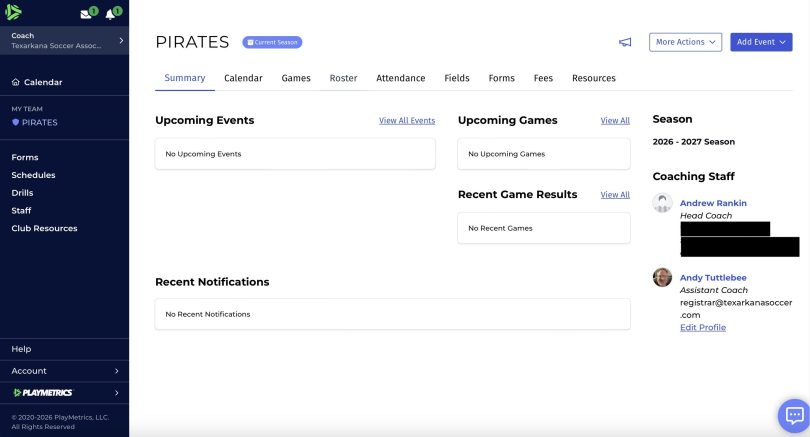
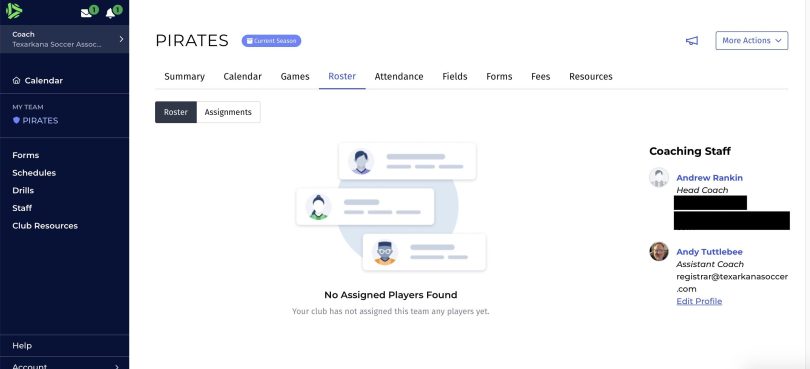
Then click on Team Assignments and you will see your roster with names, parents names and contact e-mail and phone number. The megaphone on the right side (by the More actions button) will allow you to send e-mails but we recommend calling first for introduction purposes and then setting up a group me or text group to communicate effectively. E-mail isn’t the most reliable between messages getting diverted to junkmail, etc . . .

If using your phone/playmetrics app, it’s a little different to navigate but possibly easier to communicate later.


Click Coach on left side. Select My Team on bottom of screen. Click Summary for drop menu.


Select Roster. Select Assignments. Messages thru the megaphone.
 Follow